Back to Instructions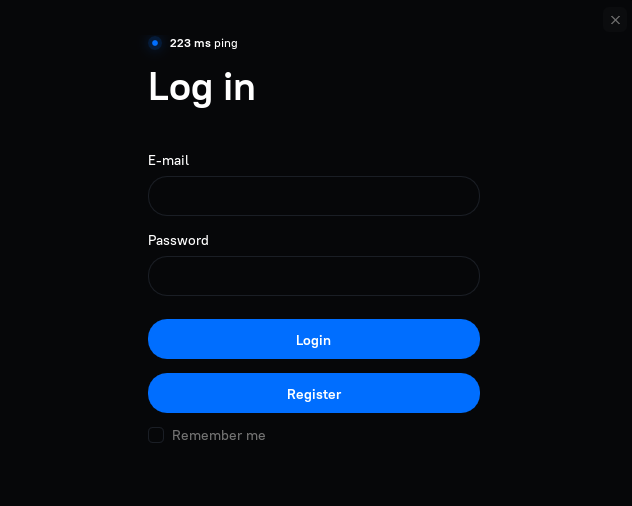
Fortnite — Setup Guide
Follow these steps carefully to set up Fortnite successfully.
Video Tutorial: How to Load Xeru
1Apply Registry File
This registry file is required to properly configure your system:
- 1. Download the .REG file using the button below
- 2. Double-click the downloaded .REG file to open it
- 3. Click "Yes" when prompted by User Account Control
- 4. Restart your computer after applying the registry file
2Setup Discord Overlay
Make sure Discord Overlay is enabled:
- 1. Open Discord
- 2. Go to User Settings → Game Overlay
- 3. Turn Enable in-game overlay → ON
- 4. Ensure LEGACY OVERLAY is disabled
- 5. Click the dropdown menu to reveal Registered Games and make sure Fortnite is added + overlay is ON
Important: Discord overlay must be enabled and NOT in legacy mode for the cheat to work properly.
3Download Loader
Download the official loader to begin the setup process:
Download Loader4Register & Login
After downloading the loader:
- 1. Run the loader application
- 2. Click Register to create a new account
- 3. Log in with your credentials
- 4. Redeem your license key in the loader
Note: Your license key was sent to your email after purchase. Check your inbox and spam folder.
5Complete Setup & Play
- 1. Follow the prompts given by the loader
- 2. Launch Rust
- 3. Enjoy playing with your new features!
Have fun! Any problems? Contact our staff in Discord for immediate support.
⚠Troubleshooting
Software not injecting after pressing load
- Make sure Discord overlay is ON (NOT legacy)
- Rust must be in Windowed Fullscreen
- Disable all antivirus
- Disable Hyper-V
- Restart PC
- Run loader again
- Wait 10-20 seconds (do NOT spam-click loader)
Game crashes on injection
- Update GPU drivers
- Disable overlays (NVIDIA, SteelSeries, Overwolf, etc.)
- Only leave Discord overlay on
- Restart computer
- Load software again
Loader window closes instantly
- Right-click → Run as Admin
- Disable SmartScreen
- Move loader to its own clean folder
- Re-extract files from the .zip